

Table of Contents
- Streamlining Personalized Education with Gradelink
- Two Ways to Personalize the Curriculum in Gradelink
- Tailoring the Curriculum to Each Student
- Copy Assignments Between Gradebooks Easily
- Tracking Dual Enrollment and Online Classes
- Flexible Course Completion for Self-Paced Learners
- Supporting Students with IEPs and 504 Plans
Streamlining Personalized Education with Gradelink
In today’s diverse educational landscape, schools are increasingly embracing individualized education to meet each student’s unique needs. However, this approach comes with its own set of challenges. Let’s explore how Gradelink can be a game-changer for schools dedicated to personalized learning.
Gradelink empowers schools to implement individualized education without adding complexity. From customizing gradebooks and report cards to supporting flexible course schedules and external credits, Gradelink makes it easy to tailor the academic experience to each student. With built-in tools for tracking progress, managing IEPs and 504s, and communicating with families — all in one place — schools can focus less on managing systems and more on helping students thrive.
Two Ways to Personalize the Curriculum in Gradelink
Tailoring the Curriculum to Each Student
One common challenge of individualized education is managing a curriculum that meets diverse student needs. In Gradelink, schools can handle this in a couple of ways.
Teachers can mark assignments as excused for specific students, allowing everyone to see the full scope of the curriculum while each student is only accountable for the assignments that apply to them.
How to excuse an assignment for a student in Gradelink:
- Go to the GradeSheet tab.
- Find the assignment you want to excuse.
- Click the cell for the student you want to excuse.
- Enter “EX” (short for Excused) and press Enter.
- The grade will no longer factor into their average. The student will also see “excused” appear next to the assignment.
Alternatively, teachers can duplicate classes to create different groups, ensuring that assignments are perfectly tailored to each group of students. This flexibility ensures that every student’s learning path is respected and nurtured.
How to create separate versions of a class for different student groups:
- Go to the Classes tab.
- Click “Add Class.”
- Name the new class (e.g., “Math – Independent Track”).
- Assign the same teacher and subject as the original class.
- Go to Populate Classes and assign the specific students to each version.
Copy Assignments Between Gradebooks Easily
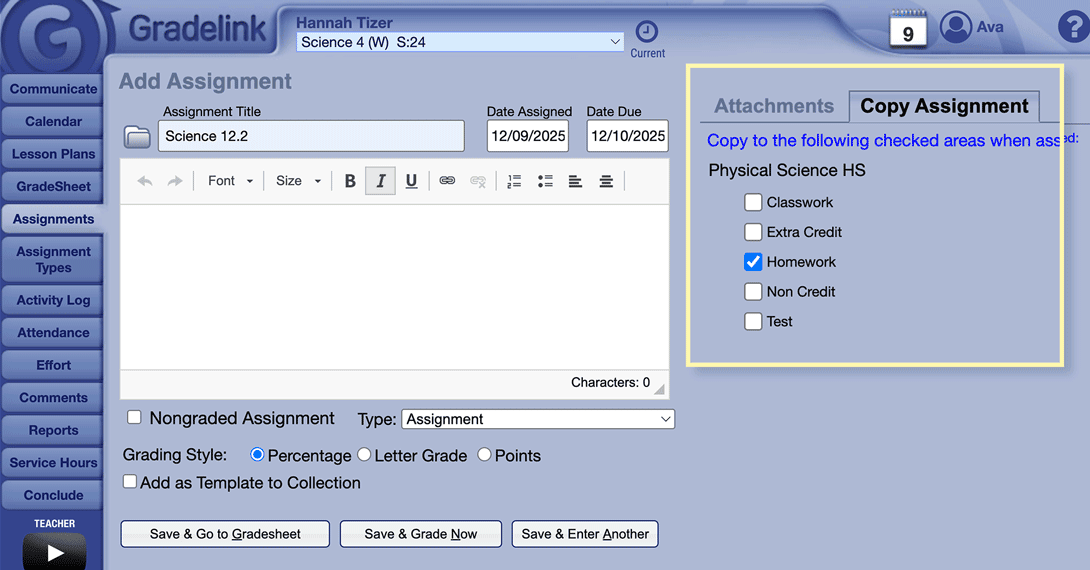
If you’re teaching both classes and want to reuse assignments across them, you don’t need to create the same assignment twice. When adding an assignment, simply click Copy Assignment and select the other gradebook — saving you time while keeping each group on track.
Tracking Dual Enrollment and Online Classes
Another key aspect of individualized education is allowing students to take courses outside their primary school, such as community college classes or online programs. Gradelink makes it simple to integrate external credits into a student’s transcript, ensuring all their achievements are documented in one place. This not only provides a comprehensive view of their education but also supports a seamless learning experience.
Add Grades Directly to a Transcript
- Click Transcripts > Add Grades
- Select a term. If the class was taken at your school, select the term from the drop-down menu. If the class was taken at another school, such as a community college, type the school’s name in the term’s title so that it’s clear where the class was taken.
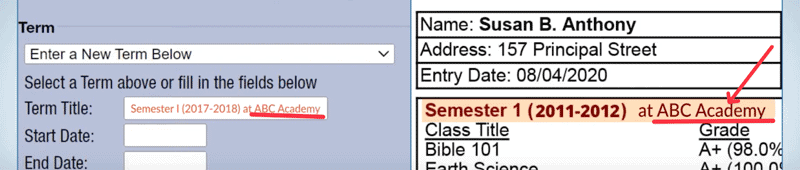
- Select the class from the drop-down menu. If it’s not there, type it.
Flexible Course Completion for Self-Paced Learners
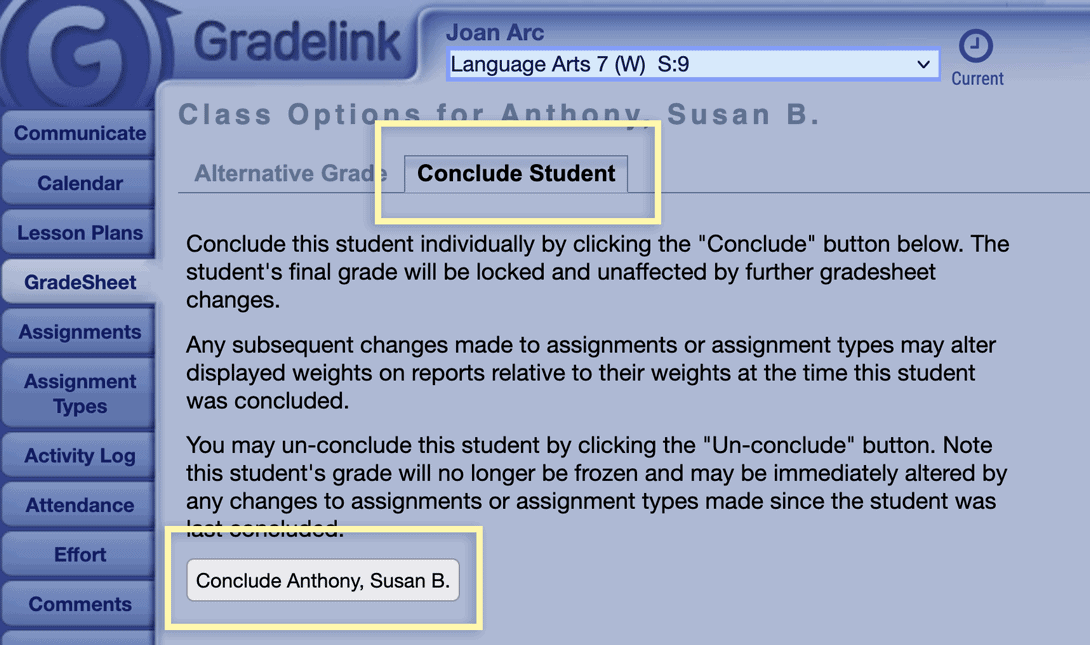
In a self-paced learning environment, some students may finish their courses earlier than their peers. Gradelink’s “Individual Conclude” feature allows teachers to mark a class as completed for a specific student, even if the rest of the class is still ongoing. This keeps records accurate and acknowledges the student’s accomplishment in real time.
To Individually Conclude a Student
- Go to the Gradesheet
- Click the student’s final grade on the right
- Click Conclude Student
Supporting Students with IEPs and 504 Plans
Gradelink also offers robust support for students with Individualized Education Programs (IEPs) or 504 plans. Admins can easily track IEPs and 504 documents, share notes with teachers, share student progress with parents, and customize report cards. This ensures these students receive the personalized support they need.
Key Takeaway
Gradelink is essential for schools dedicated to individualized education because it provides flexible, built-in tools to personalize the academic experience. Key features include the ability to excuse assignments for specific students, duplicate classes for different groups, integrate external dual enrollment credits into the transcript, and manage IEPs and 504 plans, allowing teachers and administrators to tailor the curriculum to every student’s unique needs easily.
Frequently Asked Questions (FAQs)
What are the two main ways a teacher can personalize the curriculum for individual students in Gradelink?
Teachers have two solid options in Gradelink for personalizing learning. They can excuse certain students from specific assignments, or they can make copies of classes to create separate groups, letting them fine-tune assignments for each group.
How do you excuse an assignment for a student in Gradelink?
To excuse an assignment, just head to the GradeSheet tab, find the assignment, click on the student’s cell, type “EX” for Excused, and hit Enter. That assignment won’t count toward the student’s average anymore.
Why would a teacher duplicate a class for personalization?
Sometimes teachers need different versions of a class, like a special track for independent learners. By duplicating a class, they can set up assignments and curriculum that really fit each group without mixing things up.
Can a teacher reuse assignments if they have duplicated a class?
Absolutely. When a teacher adds a new assignment, they can just click “Copy Assignment,” pick the other gradebook, and reuse it. It saves time and keeps things consistent.
How does Gradelink handle dual enrollment or classes taken at other institutions?
Gradelink keeps things straightforward. If a student takes a class somewhere else, say, a community college, the admin can add those grades manually. They just type the school’s name in the term title so it’s clear where the credits came from.
How does Gradelink support students in a self-paced learning environment?
With the “Individual Conclude” feature, teachers can mark a class as finished for one student even if everyone else is still working. That way, the records stay accurate, and the student’s progress gets recognized right away.