

Why Does Reporting an Absence Require Three Steps?
When a student is going to miss school, parents typically call, email, or text the front office to explain why.
But that message is only the beginning.
Someone in the office still has to check the voicemail, read the email, or find the text message, then enter the information into the school’s attendance system. It’s a routine task, but one that creates extra work.
What if parents could report absences directly through your school’s app or online portal instead?
With Gradelink, they can. Parents submit the absence information themselves, and an authorized staff member reviews it and decides how the absence should be recorded. That eliminates the middle step of transferring information from phone calls, emails, and text messages into attendance records. Three steps become two.
School staff still reviews the information and records attendance, but the front office no longer needs to transfer each parent’s message into the system manually.
How Do Parents Report Student Absences Online? 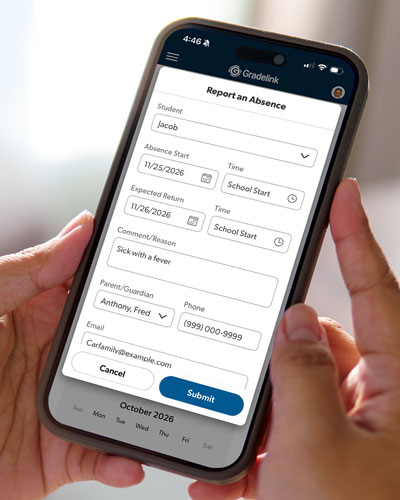
With Gradelink’s student information system, parents can report absences using the parent app or online portal.
The process takes just a few steps:
- Open the Gradelink parent app or online portal.
- Select the child who will be absent.
- Choose the absence date or dates.
- Enter the reason for the absence.
- Submit the report.
For example, a parent might enter, “Jacob is sick today.”
Parents can submit absences when it’s convenient for them, including outside school office hours. And if their child will be absent for multiple days, parents can select the relevant dates rather than contacting the school each morning.
Once submitted, the information is available to the school in Gradelink without anyone having to answer a phone call, check an email, or copy information from another message.
What Happens After a Parent Submits an Absence?
This is where the difference between reporting an absence and recording attendance becomes important.
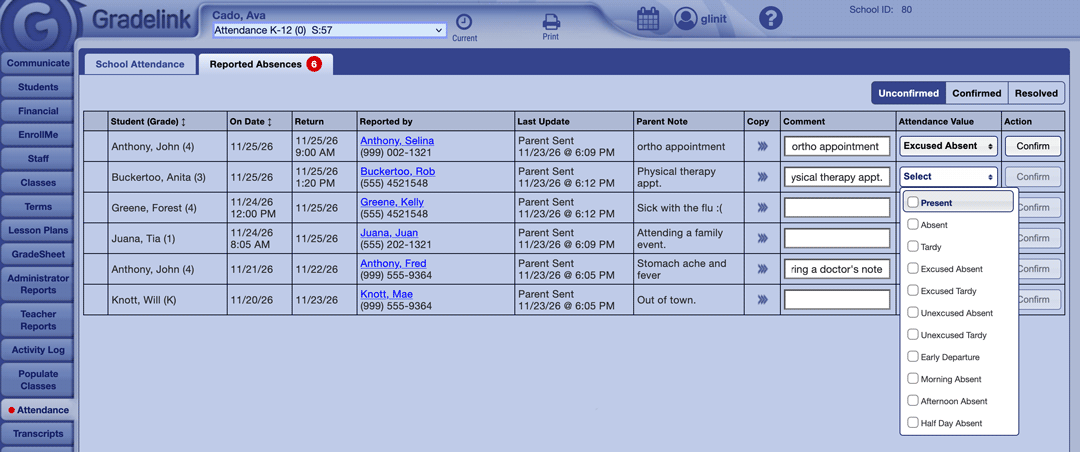
When a parent submits an absence report, the school receives the student’s name, the reported dates, and the parent’s explanation. An authorized staff member reviews the information in Gradelink’s Reported Absences screen.
Instead of searching through voicemails and emails, the staff member already has the information needed to make an attendance decision.
For example, suppose a parent reports: “Jacob has a doctor’s appointment on Thursday.”
The staff member reviews the report and determines the appropriate attendance mark according to the school’s policies. The important distinction is that the school still makes the attendance decision. Gradelink simply removes the unnecessary work of collecting and reentering the parent’s message.
Can Parents Excuse Their Own Children’s Absences?
No. Parents report absences, but the school determines how those absences are recorded.
For example, a parent might report an absence for a family vacation. That doesn’t automatically mean the absence is excused. Your school applies its own attendance policies when reviewing the report.
Gradelink also allows schools to configure their attendance categories. Depending on your school’s policies, these might include:
- Absent
- Excused Absent
- Tardy
- Half-Day Absent
The categories aren’t predetermined by Gradelink. Schools can establish the attendance marks that work for them.
Schools can also control who has permission to assign attendance marks. For example, one school might require an administrator to review and mark absences. Another might allow both administrators and teachers to record attendance.
This flexibility lets schools simplify how absence information is collected without changing who is responsible for attendance decisions.
What Happens to the Parent’s Explanation?
In a traditional absence reporting process, the parent’s message and the student’s attendance record are often stored in different places.
The parent emails the office, and someone records the student as absent or excused absent. But the original explanation may remain in an email inbox. With Gradelink, the parent’s explanation can be kept alongside the attendance mark.
For example:
Parent’s message: “Jacob is home sick today.”
School’s response: “Hope he feels better soon.”
Both comments can be included in the attendance record.
When parents check their child’s attendance history, they can see the date, attendance mark, and comments. This is especially useful when a parent has a question about how an absence was recorded.
Instead of asking office staff to search through old emails, parents and school staff can refer to the attendance record and its accompanying comments. It also provides a clearer history of attendance decisions throughout the school year.
Can Teachers See Why a Student Is Absent?
Yes. Teachers can view attendance comments in Gradelink, so the explanation doesn’t have to remain with the front office.
For example, if a parent reports that a child is sick, the teacher can see the attendance comment rather than contacting the office to ask whether the school received an explanation. This can be especially helpful when students miss several days of class.
Schools also decide who can assign attendance marks. Teachers may be permitted to record attendance, or that responsibility may remain with administrators.
Either way, the goal is to make attendance information available to the people who need it without requiring additional messages between the front office and classroom teachers.
A Simpler Way to Manage Student Absences
Student absence reporting doesn’t have to involve three separate steps.
With Gradelink, parents can submit absence information directly through the app or online portal, while your school retains control over how attendance is recorded.
The result is less manual work for your front office, better-organized attendance records, and easier access to information for parents and teachers.